
On our cPanel hosting, you can activate a free Let’s Encrypt SSL certificate yourself.
This guide applies to our cPanel hosting packages. If you use a cloud hosting package, enable the free certificate in the Cloud Panel.
Before you start
The domain or subdomain you want to secure must already point to your hosting with us. Otherwise, the certificate cannot be issued.
Activate the free certificate
The free certificate can be activated in your cPanel account.
1) Log in to your cPanel account.
2) Open SSL/TLS Certificates.
3) Select your domain (example.com) and its wildcard entry (*.example.com):
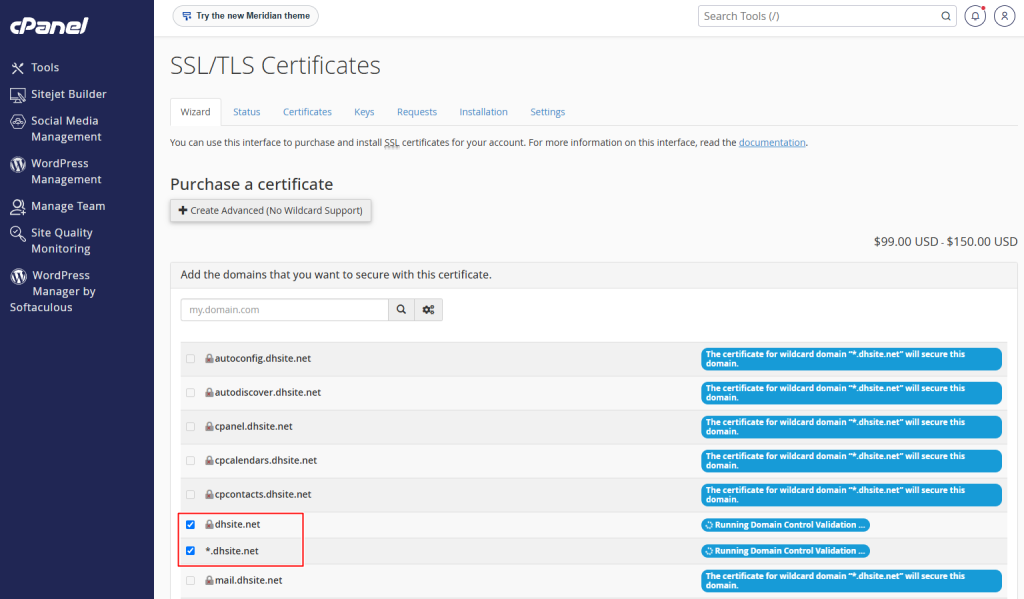
Create Simple (Wildcard Support) (below Purchase new certificates).4) Click Next.
5) On the next screen, click Let's Encrypt Certificate on the RIGHT side:
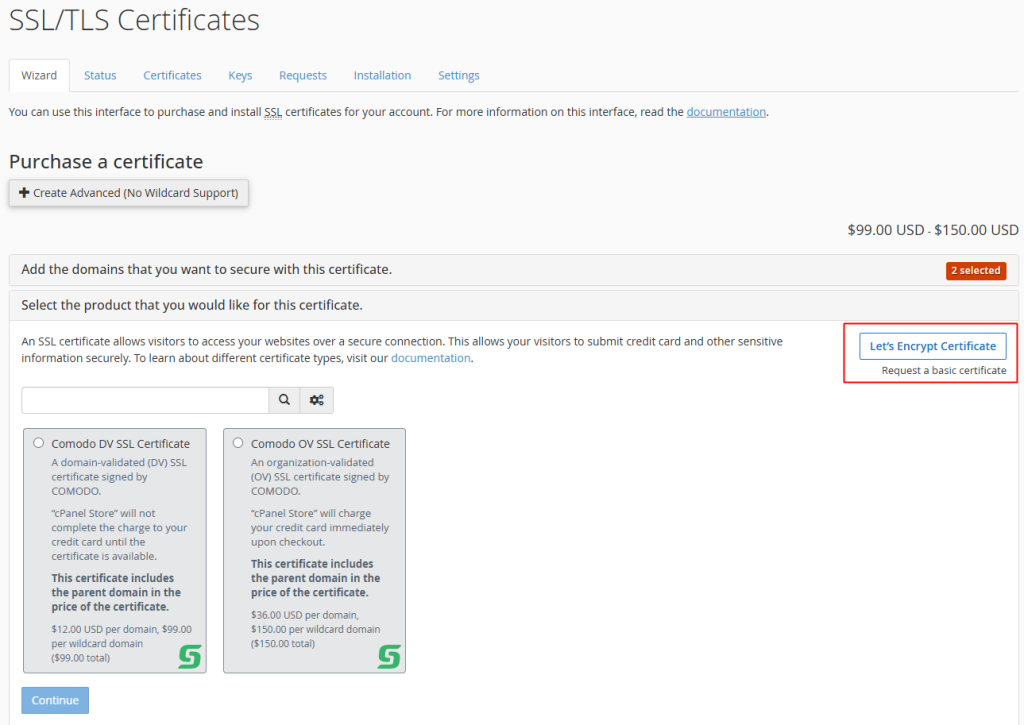
6) Accept the Let’s Encrypt terms and confirm your request.
Once the terms are accepted, the certificate will be issued automatically within the next few minutes.